What are the advantages of running regular Windows applications as services? Plenty, particularly if your computer is shared by multiple users each having their own accounts. Turning applications into services will enable you to force these applications to run no matter who is logged-in into the computer. You will notice that critical Windows applications are always run as services; third party anti virus applications, firewalls, anti spywares etc are run as services too. Running applications as services has several benefits
- Services always start even before a user logs on to Windows, unlike startup programs that launch only after a user session has begun. By the time a user logins and gets to access the desktop, the services are already running. This is ideal for user monitoring applications like parental control software, keyloggers etc.
- Services can be executed with specified user rights and priority
- Services automatically launch themselves after a Windows crash or reboot
In order to turn applications into services we will require two tools - Instsrv.exe, a service installer and Srvany.exe, which allows any Windows application to run as a service. Both these tools are a part of the Windows Server 2003 Resource Kit which contains plenty of other useful tools. If you don't want to download the whole pack, then you can download only the two required tools from here.
1. Copy both Instsrv.exe and Srvany.exe to C:\Windows\System32 folder.
2. Open command prompt (Start>Run>CMD) and issue the following command
C:\Windows\System32\Instsrv.exe Service Name C:\Windows\System32\Srvany.exe

This will create a service "Service Name" in the Services manager and set up the necessary registry keys. Give a proper service name so that you can recognize the application.
3. Now open the Registry editor by typing regedit in the Run box. Navigate to this registry key.
HKEY_LOCAL_MACHINE\SYSTEM\CurrentControlSet\Services\service name
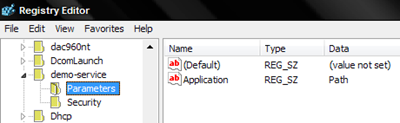
From the Edit menu click New>Key and name it Parameters. Again from the Edit menu click New>String Value and name it Application. Right click on Application and click Modify. In the "Value data" field give the full path of the application you want to run as a service. After you are done, it should look like this
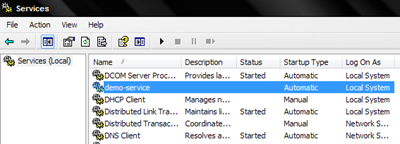
4. Close the registry editor and open Service Manager by typing services.msc in the Run box. There you will find your newly created service. You can now adjust the behavior of the service by clicking on Properties.


u got a spelling error there. shouldnt it be "System32" instead of "Sysytem32"
ReplyDeleteOops! Corrected.
ReplyDeleteThere is a better application that does the same job with less settings and the good news is that it works in win 7.
ReplyDeleteI personally use it on running Vibe Streamer and works flawlessly!
I've been trying to find a solution to do the same thing in Windows 7 - What is that applications ?
ReplyDeleteThanks
Thanks to you I successfully managed to make quietHDD run as a service every time I turn on my Asus 1215N!
ReplyDeleteThat HDD clicking sound was driving me crazy and I couldn't make quietHDD run automatically at every startup because it needs administrator rights to execute.
Everything seems to be working fine so far.
You can also take a look at Application as Service (http://www.application-as-service.com/), this utility allows running any application as service and manage them with ease.
ReplyDeleteWe use AlwaysUp on Windows 7
ReplyDeletehttp://www.coretechnologies.com/products/AlwaysUp/
hi, my custom service doesnt startup after i created it using Instsrv.exe..getting error 1053
ReplyDeletesame here, 1053
ReplyDeleteservices running, but the real application in not running... how it can be..
ReplyDelete